

The door: check-in by QR
The Door tab, the scanner on any phone, PIN devices for staff without an account, offline check-in, lanes and the attendance list.
Watch the lesson
The Door tab
Everything for the entrance lives in the event's Door tab.
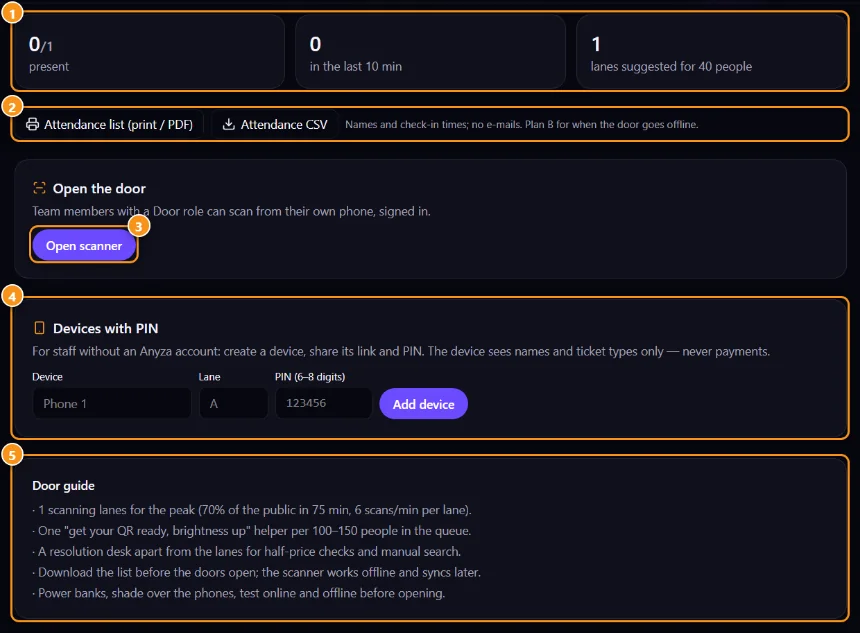
1 Present, last 10 minutes and suggested lanes · 2 Attendance list (print / PDF) and CSV · 3 Open scanner · 4 Devices with PIN · 5 Door guide
Open the door
There are two ways in:
- Team members with the Door role (or owner and co-organizers) tap Open scanner 3 and scan from their own phone, signed in. See Team.
- Staff without an Anyza account: under Devices with PIN 4, type a Device name (for example "Phone 1"), a Lane and a PIN (6–8 digits), and tap Add device. Send the link to that person; they open it on the phone and enter the PIN. Revoke turns a device off.
Scan
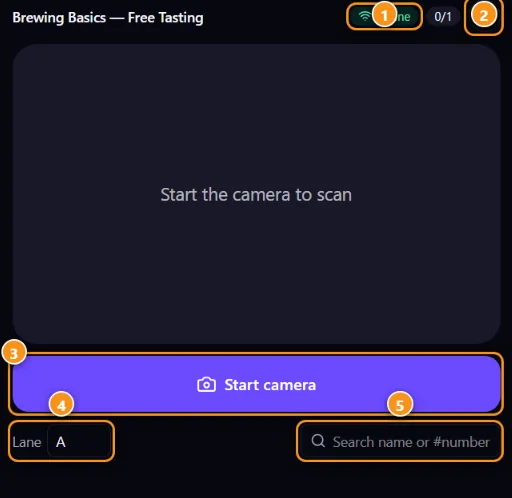
1 Online or offline · 2 Checked in so far and refresh the list · 3 Start camera · 4 Lane · 5 Search name or #number
Tap Start camera 3 and point it at the ticket QR. Green OK = in; ALREADY IN, INVALID or CANCELLED = stop and check. Half-price tickets show a reminder to check the document. For someone who forgot their phone, use Search name or #number 5 and Check in.
No internet
The scanner downloads the list beforehand and checks the QR signature on the phone itself. When the connection drops, the badge 1 says Offline and check-ins queue up (the badge shows how many are left to sync) and go up when the internet comes back. Several phones at the same time work fine.
How many lanes
The tab suggests how many scanning lanes you need for your capacity 1, and the Door guide 5 has the rest: helpers in the queue, a resolution desk, power banks, testing offline before opening.
Attendance list
Attendance list (print / PDF) and Attendance CSV 2 have names and check-in times, no e-mails. They're your plan B for when the door loses power or signal.
Check-in and reviews
At in-person and hybrid events, only tickets that were checked in can review the organizer after the event. If you let someone in without scanning, check them in by name so they can leave a review later. See Organizer reviews.
Related: Team · My tickets · Create an event and tickets
Updated 2026-10-16