

Sales and payment confirmation
The Sales tab: orders by status, confirming card payments, refunds and cancellations, the conversation with the buyer, the sales book and CSV; plus a separate wallet or payment link per event.
Watch the lesson
Crypto payments through Anyza Pay are confirmed on their own: the ticket is issued as soon as the payment shows up on the network. Card payments through your link need a click from you. Both end up in the event's Sales tab, which the owner, co-organizers and the Finance team can use.
The Sales tab
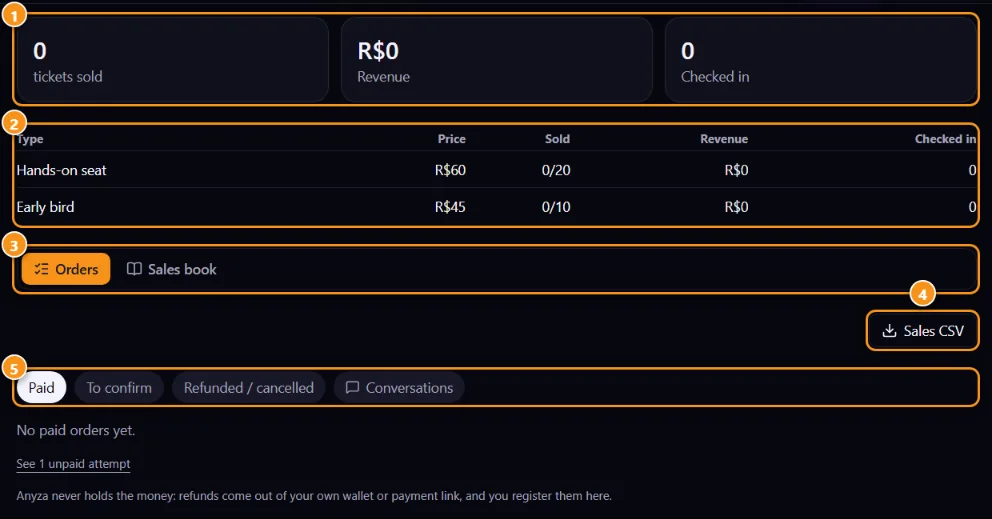
1 Tickets sold, revenue and check-ins · 2 By ticket type · 3 Orders / Sales book · 4 Sales CSV · 5 Order status
- The totals 1 and the table by ticket type 2 update with each sale and each check-in at the door.
- Orders 3 lists the orders by status 5: Paid, To confirm, Refunded / cancelled and Conversations. Search by name, @user, ticket or transaction. Below the list, See unpaid attempts shows people who started paying and didn't finish.
- Sales book 3 is every sale in one table, with filters by ticket type, method, status and date, and the total received.
- Sales CSV 4 downloads order by order, with payment method and transaction, for your accounting.
Confirm a card payment
- The buyer pays on your payment link and taps I've paid on the event page, with a note if they want.
- The order shows up in To confirm, and you get a notification.
- Check the payment in your Whop, PayPal or other checkout account (the buyer's e-mail and note help).
- Tap Confirm. The ticket is issued and the buyer gets it by e-mail. If the money didn't arrive, tap Not received.
Refunds, cancellations and notes
Each paid order has Refund, Cancel, Note and Message.
- Refund: Anyza never holds the money, so you send the refund from your wallet or your payment link, by the same method the buyer paid. Then register it here: paste the refund transaction (optional; for crypto, the buyer's wallet is filled in from the original payment), add a note for the buyer and choose whether to also void the tickets. Tap Register refund. The buyer gets an e-mail.
- Cancel: cancels the order with a reason the buyer sees.
- Note: records something that happened, for your team.
Everything you do stays in the order's history.
Talk to the buyer
Buyers write to you from their ticket with Talk to the organizer about payment. Those conversations show up under Conversations 5, and you answer there or with Message on the order.
One wallet or one link per event
Want to split payments, like lunch in one wallet and the talk in another? In the event's Tickets tab, the How this event gets paid card has a wallet and a payment link for just that event.
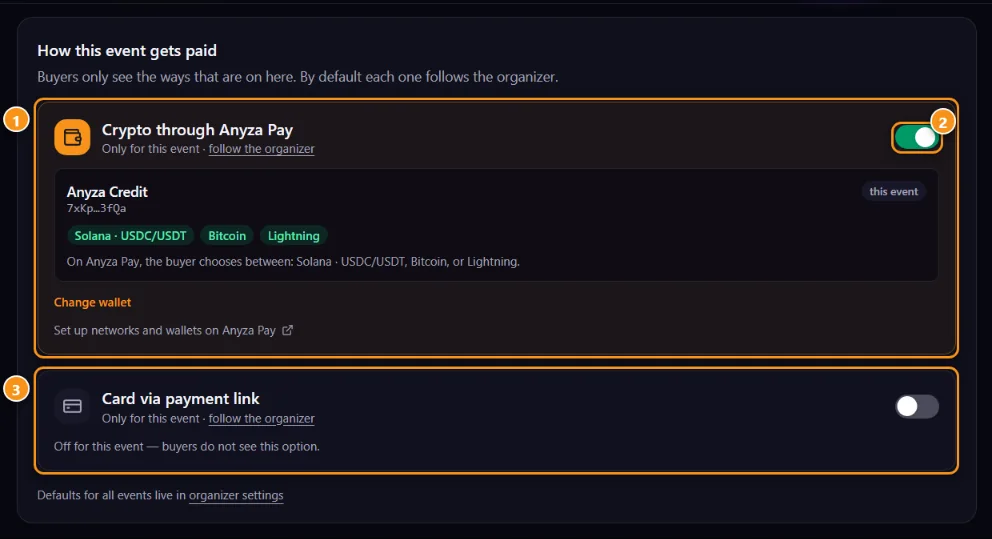
1 Crypto through Anyza Pay, with this event's wallet · 2 On or off for this event · 3 Card via payment link
- Change wallet picks another of your Anyza Pay wallets for this event only; follow the organizer goes back to the default.
- Each method can be turned on or off 2 for this event only.
- Empty = uses the organizer's. Orders already open keep the wallet they were created with.
Related: Organizer profile, trust tier and payouts · Buy a ticket · Team
Updated 2026-10-16