My tickets: QR, online access, transfer, reminders
Where your tickets are, when the QR or the online link unlocks, how to add the event to your calendar, pass a ticket to someone else and review the organizer afterwards.
Watch the lesson
Where
My tickets lists your tickets in two tabs. Each ticket opens its own page.
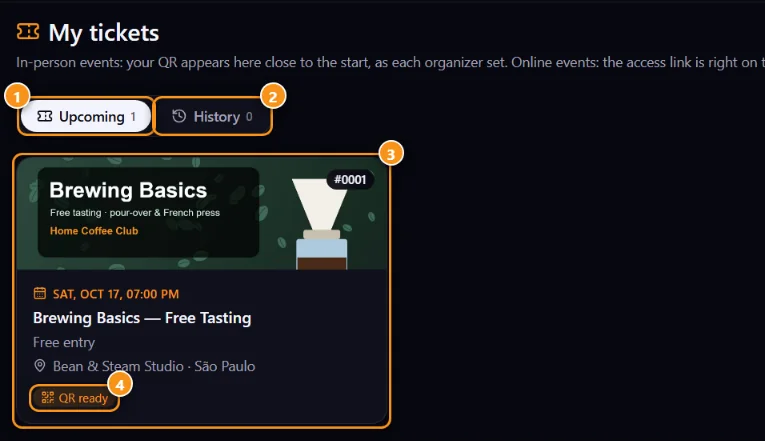
1 Upcoming · 2 History · 3 A ticket (tap to open it) · 4 The QR is ready
In-person events: the QR
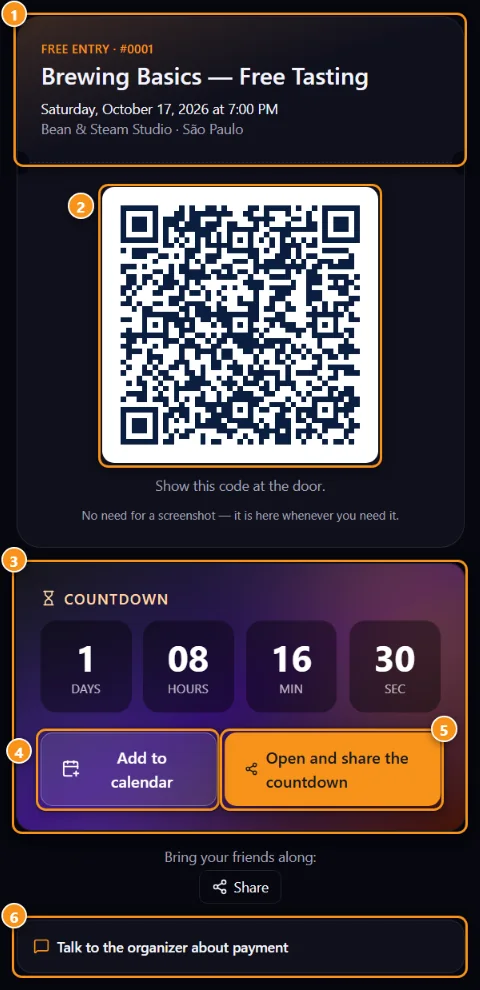
1 Event, ticket type and number · 2 The QR for the door · 3 Countdown · 4 Add to calendar · 5 Open and share the countdown · 6 Talk to the organizer about payment
The organizer can unlock the QR only a few hours before the event, to prevent reselling and screenshots. Until then the ticket says when the QR appears. You get e-mails 7 days, 1 day and 2 hours before, with that time.
At the door, show the QR 2 on your screen with the brightness up. It also works from the e-mail. Don't send a screenshot to someone else: each QR works only once.
Online events: the access link
Online events have no door and no QR. The ticket page shows Join the event, with the organizer's link, 1 hour before the start. If the organizer hasn't posted the link yet, it shows up on the ticket as soon as it's ready. The link is for ticket holders, so please don't share it.
Countdown and calendar
Each ticket has the Countdown strip 3 with Add to calendar 4 (Google, Apple / .ics, Outlook.com, Microsoft 365, Yahoo) and Open and share the countdown 5. The ticket e-mails also have an Add to calendar link. Your calendar shows the event in your own time zone.
Talk to the organizer
Questions about a payment? Open Talk to the organizer about payment 6 on the ticket. The conversation goes to the organizer's sales panel.
Event group on Telegram or Discord
If the organizer connected a group, your ticket and the event page show Join the Telegram group or Join the Discord server. Only ticket holders get in, and you stay in the group after the event. You leave only if the ticket is cancelled, refunded or transferred.
Transfer
You can Transfer this ticket to another Anyza account by @username, free, while the QR isn't active yet and the event hasn't started. Your ticket stops working and the other person gets a new one by e-mail.
Event changed or cancelled
If the date, venue or link changes, you get an e-mail. If the event is cancelled, you get an e-mail and the organizer must refund you by the same method you paid, following their refund policy.
After the event
If you attended, your ticket shows How was it? Rate the event for 60 days, and you get one e-mail asking how it went. See Organizer reviews.
I got an e-mail but don't see the ticket
The ticket is in the account of the e-mail that received the message. If you're signed in with another account, My tickets warns you. Sign out and sign in with that e-mail.
Related: Buy a ticket · The door: check-in by QR · Share and promote an event
Updated 2026-10-16