

Post a listing
Start from a photo and let the AI fill in the listing, or write it yourself. Drafts save on their own; the listing goes live after a quick AI check.
Watch the lesson
You can list a product, a service, or something you are looking for. It takes a few minutes, and you can start from a single photo.
You need a confirmed account (level L1 or higher). Some high-value categories require level L3; the form tells you when that is the case.
Start: from a photo or by hand
- Sign in and click Sell for free at the top (Post a listing on the phone).
- If you are on the Global region, pick your country first (Where are you selling?). Listings live in a country region so buyers nearby find them.
- Choose how to start:
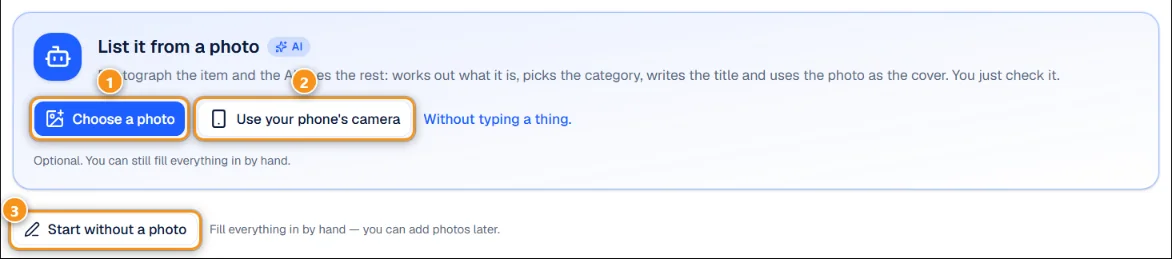
1 Choose a photo · 2 Use your phone's camera · 3 Start without a photo
- List it from a photo: tap Choose a photo 1 (or Take a photo on the phone). On a computer, Use your phone's camera 2 shows a QR code: scan it and take the photo on the phone (the code lasts 30 minutes, no sign-in needed on the phone). The AI works out what the item is and suggests the category, title and description. Tap Yes, start filling in to use them, or Continue with this photo to fill in by hand. The photo becomes the cover.
- Start without a photo 3: fill in everything yourself and add photos later.
The suggestion only describes what is visible. Model, condition and age are yours to state, and you answer for what the listing says.
Drafts save on their own
Everything you type is saved as a draft about every second, even before you add a price or a place. You can close the page and continue later on any device: your drafts appear under Your drafts on the listing page, with Continue and Delete.
- Up to 20 drafts per account. When you go over, the oldest one is dropped.
- A draft untouched for 60 days is deleted automatically.
Step 1: The item
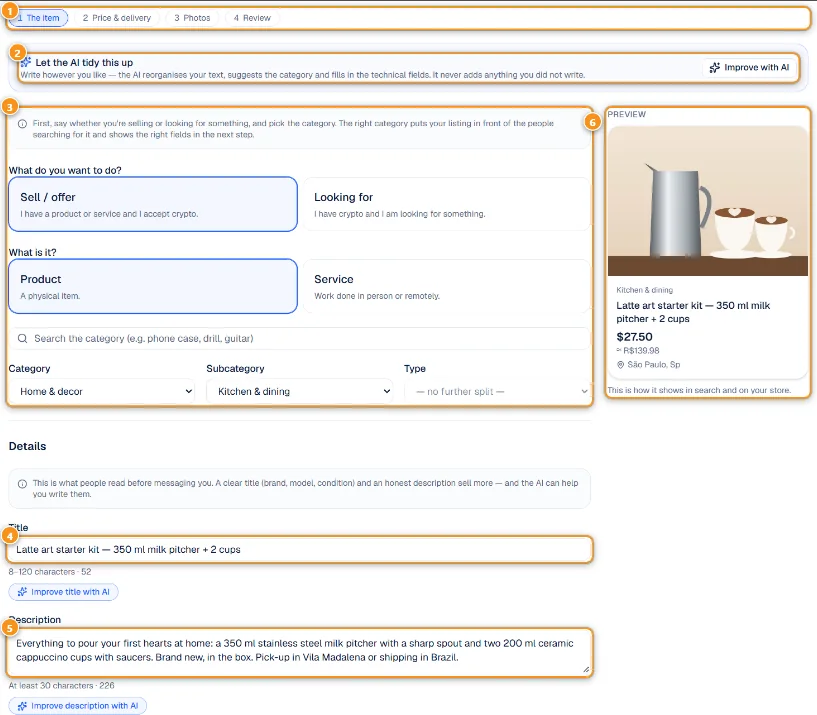
1 The four steps · 2 Let the AI tidy this up · 3 Sell or look for, product or service, category · 4 Title · 5 Description · 6 Preview
The bar at the top 1 shows the four steps; you can jump back to any step you have filled.
- What do you want to do? Sell / offer or Looking for. What is it? Product or Service. Then the Category 3: type in the search box or use the menus. The category decides the extra fields (for example, mileage for vehicles).
- Title 4 (8 to 120 characters) and Description 5 (at least 30 characters). Under each one, Improve with AI suggests a better version, which you read before applying.
- Let the AI tidy this up 2 reorganizes your text, suggests a better category and fills in the technical fields, without adding anything you didn't write.
- YouTube video (optional), Condition and the category details further down. Fields marked * are required.
The Preview 6 shows the card exactly as it will look in search and on your store.
Step 2: Price & delivery
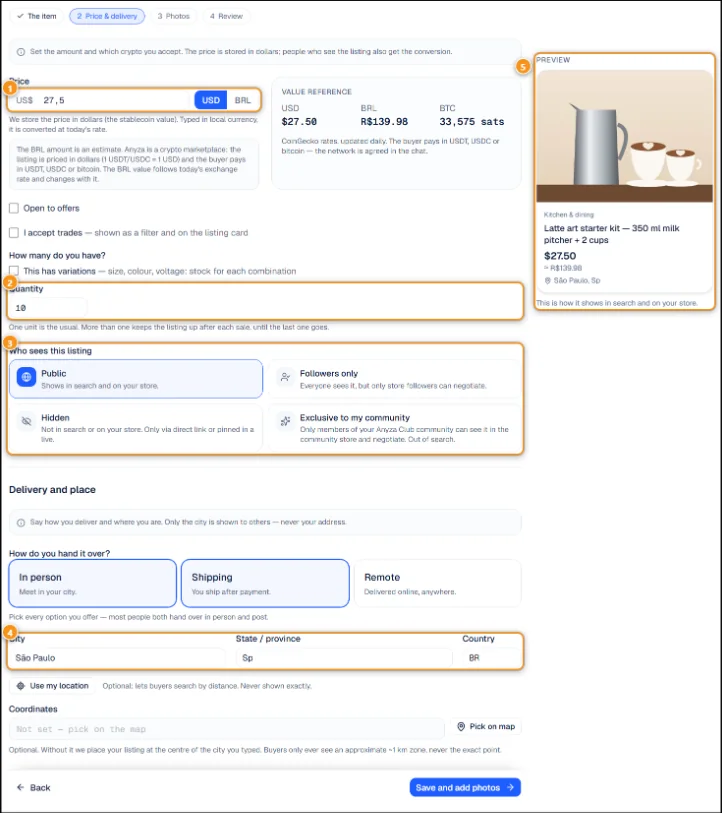
1 Price in US$ or local currency · 2 Quantity · 3 Who sees this listing · 4 City · 5 Preview
- Price 1 in US dollars, or typed in your local currency (switch with USD / your currency) and converted at today's rate. The Value reference box shows it in dollars, local currency and bitcoin.
- Open to offers and I accept trades (shown as a filter and on the card). With I accept trades ticked you can list what you would take in exchange — see Swap Market.
- You don't pick coins: every listing accepts USDT, USDC and Bitcoin. The buyer and you agree on the network in the chat.
- How many do you have? 2 A personal account sells one unit per listing. Stock and a size and colour grid (This has variations) are part of the Business store.
- Who sees this listing 3: see below.
- Delivery and place: tick every option you offer (In person, Shipping, Remote), then the City 4. Use my location or Pick on map is optional and lets buyers search by distance. Others only see the city and an approximate zone of about 1 km, never your address.
Tap Save and add photos to continue.
Step 3: Photos
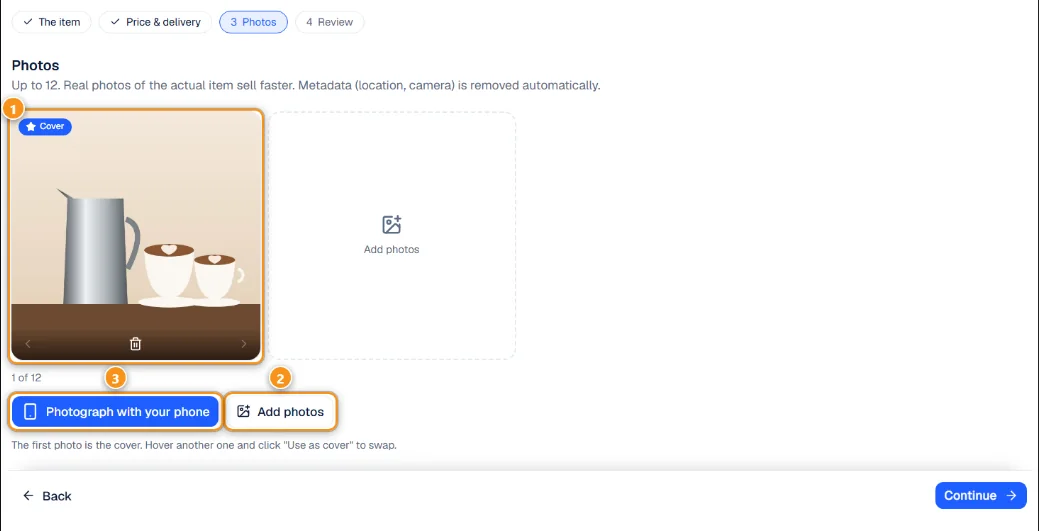
1 Your photos (the first is the cover) · 2 Add photos · 3 Photograph with your phone
Up to 12 photos (JPEG, PNG or WebP up to 5 MB). The first one is the cover 1; hover another and click Use as cover to swap. Add photos 2 picks files from your device. Photograph with your phone 3 opens a QR code so you can send photos straight from the phone. Location and camera data are removed automatically. For services, photos are optional.
Step 4: Review
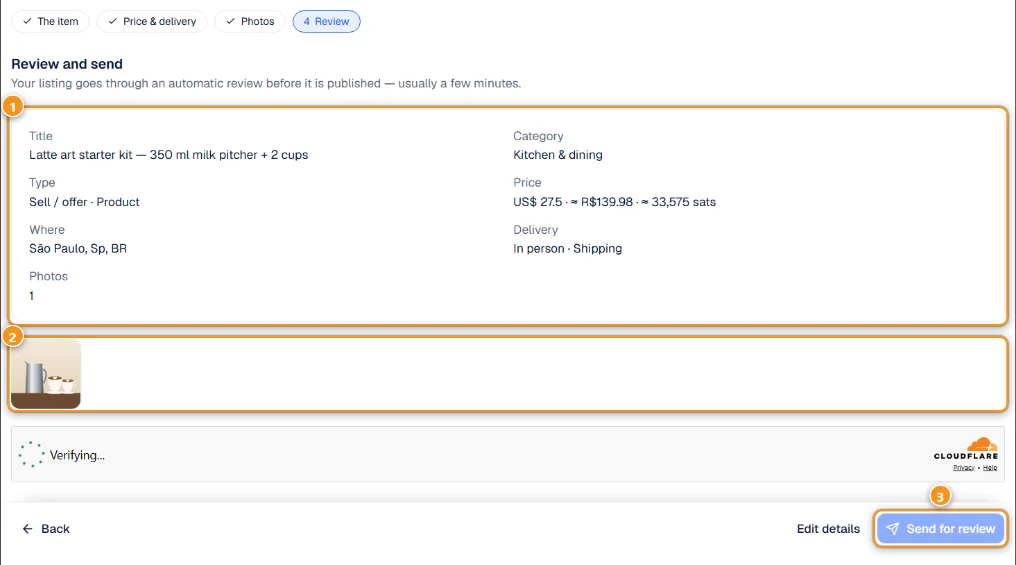
1 Summary · 2 Photos · 3 Send for review
Check the summary 1 and the photos 2, then click Send for review 3. A quick "Confirm you are human" check may appear first. An automatic AI check of the text and photos usually takes a few minutes. Unclear cases go to a person and usually take less than a day. You see the status on the screen: Under review, Published!, Needs a closer look or Not approved. If it isn't approved, edit and send again.
Who sees the listing
- Public: in search and on your profile or store. This is the only option for most personal accounts.
- Exclusive to my community: if you own a community on Anyza Club, pick it under Which community. The listing leaves search and your profile and shows in the community's Store page, for members only. Anyone with the link can see it, but only members can negotiate. If you don't have a community yet, the form offers a link to create one.
- Followers only and Hidden are for Business stores. See Business account and featured listings.
Manage your listings
Open My listings in the account menu.
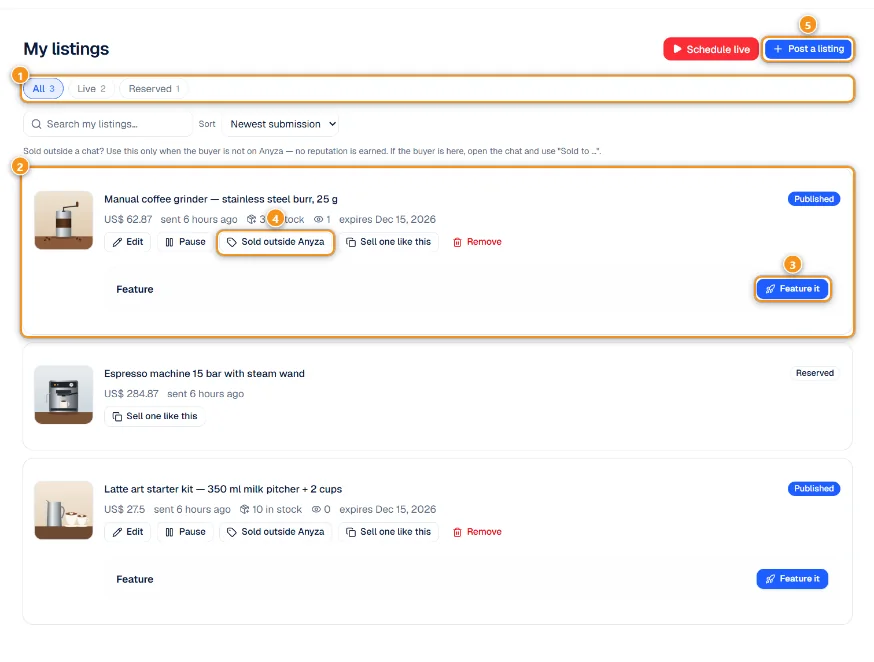
1 Filter by state · 2 A listing and its buttons · 3 Feature it · 4 Sold outside Anyza · 5 Post a listing
Filter by state 1 (All, Live, Reserved, and so on), search and sort. Each listing 2 shows its price, stock, views and expiry date, with these buttons:
- Edit: changes go through the AI check again.
- Pause and Publish again. A paused listing leaves search and stops using credits.
- Sold outside Anyza 4: only when the buyer isn't on Anyza. No reputation is earned. If the buyer is on Anyza, close the deal in the chat instead.
- Renew 60 days: listings expire after 60 days; renewing puts them back up.
- Sell one like this: creates a new listing with the same details and photos for you to review.
- Remove: permanent. The listing only stays under Removed.
- Feature it 3: book featured days. See Business account and featured listings.
Post a listing 5 starts a new one. Business stores also see Schedule live here.
Tips
- Short title with what it is plus the essentials (brand, model, size, year).
- Daylight photos of the actual item, with defects shown.
- If the review flags the category, fixing the category usually clears it.
Updated 2026-10-19