

Organizer profile, trust tier and payouts
The organizer's public page, the trust tiers and their sales limits, event documents, how you get paid (Anyza Pay wallet and card link), and handing over or deleting an organizer.
Watch the lesson
Every event belongs to an organizer: you, your company or your community. The organizer has a public page, a trust tier, a default way to get paid and a team. You can own up to 5 organizers.
The organizer page
Each organizer has a page at anyza.events/o/<name>, with the upcoming events and the reviews from people who attended.
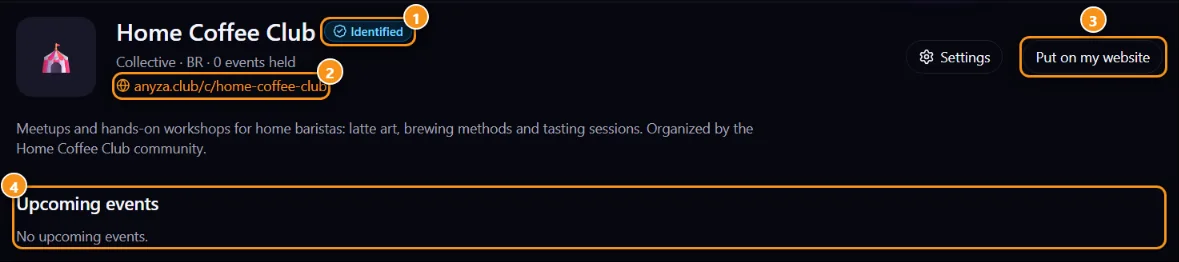
1 Trust tier badge · 2 Website · 3 Put on my website (widgets) · 4 Upcoming events
Team members also see Settings on this page. Put on my website 3 opens the widgets with the organizer's agenda.
Trust tiers
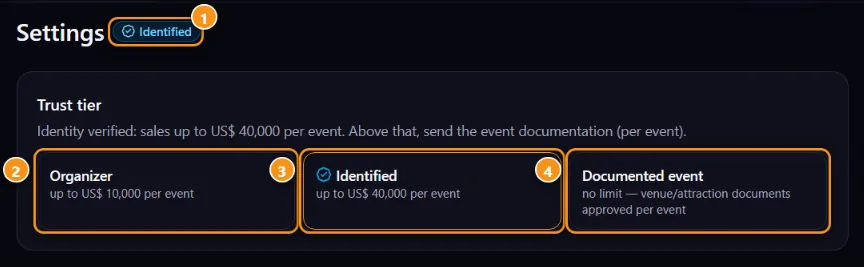
1 Your current tier · 2 Organizer · 3 Identified · 4 Documented event
- Organizer 2: an Anyza account. Sales up to US$ 10,000 per event.
- Identified 3: the owner's identity document was checked by Anyza (level 3 on the account). Sales up to US$ 40,000 per event.
- Documented event 4: no limit. The venue and attraction documents for that event are approved by Anyza, one event at a time.
The limit counts expected sales (price × tickets of all batches, in US dollars). When sales reach the tier's limit, they pause automatically. The event panel shows expected sales and the limit next to the status.
Event documents
In the event's Documents tab you send the papers that back the event. They're optional below your tier's limit; send them anyway to show the Documented event badge.
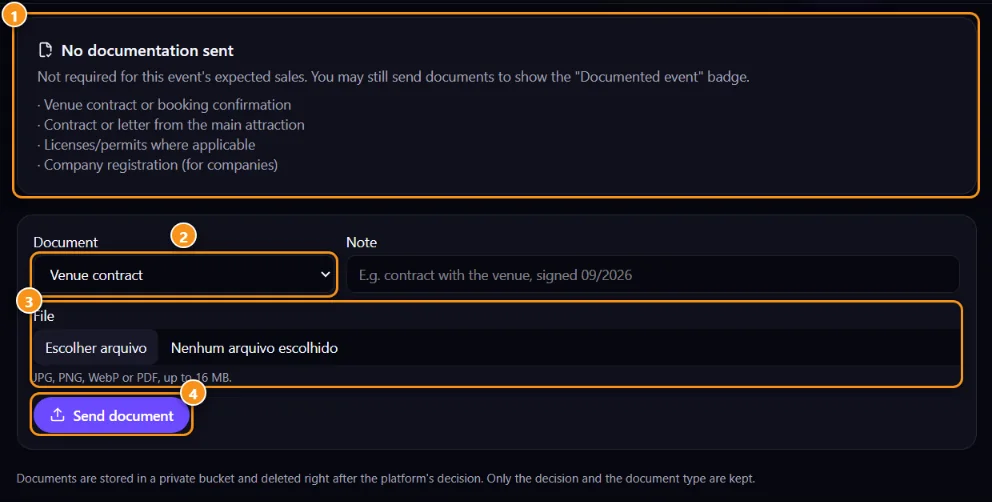
1 What to send for this event · 2 Document type · 3 File · 4 Send document
- Pick the Document type 2: venue contract, attraction contract, licence or permit, signed refund policy, company registration (for companies) or other.
- Add a note if it helps, and choose the file 3 (JPG, PNG, WebP or PDF, up to 16 MB).
- Tap Send document 4.
Documents are kept in private storage and deleted right after the platform's decision. Only the decision and the document type stay.
How you get paid
In the organizer Settings, How you receive has two ways to get paid side by side. Turn on one or both; at least one stays on.
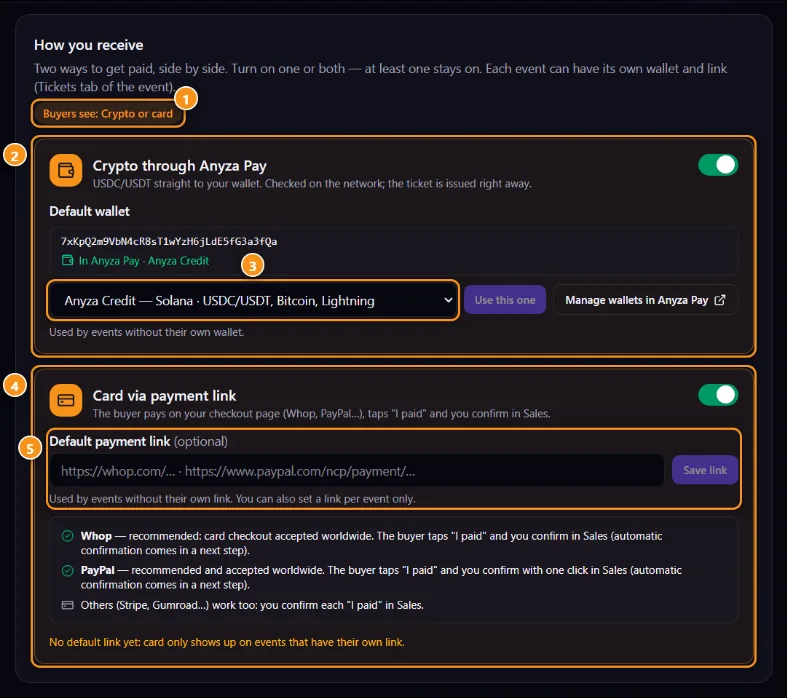
1 What buyers see · 2 Crypto through Anyza Pay · 3 Default wallet · 4 Card via payment link · 5 Default payment link
- Crypto through Anyza Pay 2: the buyer pays straight to your wallet, and the ticket is issued as soon as Anyza Pay sees the payment on the network. Pick the Default wallet 3 from your Anyza Pay wallets and tap Use this one. Buyers pay in USDC or USDT on Solana, Bitcoin or Lightning, depending on what that wallet group accepts (wallets and groups).
- Card via payment link 4: paste your checkout page in Default payment link 5 and tap Save link. Whop and PayPal are recommended (accepted worldwide); Mercado Pago, Stripe, Gumroad… also work. The buyer taps "I've paid" and you confirm in Sales.
The label at the top 1 tells you what buyers will see. Only the organizer's owner changes how the money arrives.
Each event can also have its own wallet or link. See Sales and payment confirmation.
Hand over or delete the organizer
- Hand over the organizer: in organizer Settings, the owner can make a co-organizer the owner and stays on the team as co. An organizer linked to a Club community follows the community owner.
- Delete organizer: only the owner, and only while nothing has been sold. It removes the organizer, its team and its events for good. With sales, hand it over instead.
Related: Team · Create an event and tickets · What is Anyza Events
Updated 2026-10-16