

Buy a ticket
Ticket type, quantity, names, paying in crypto through Anyza Pay or by card on the organizer's link, promoter discounts and the refund policy.
Watch the lesson
You buy straight from the organizer. Anyza shows the event, issues the ticket and checks the payment, but the money goes to the organizer, never to Anyza.
The event page
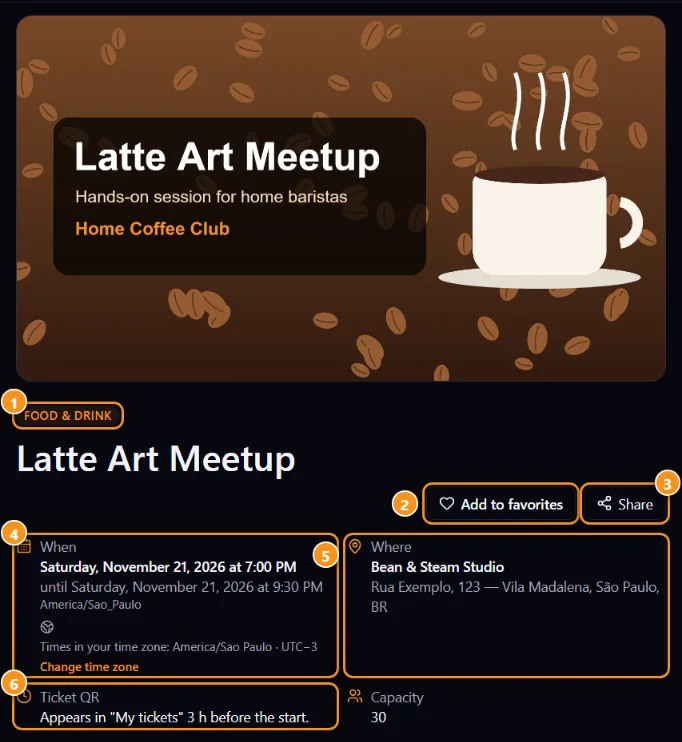
1 Category · 2 Add to favorites · 3 Share · 4 Date and time, shown in your time zone (tap Change time zone to switch) · 5 Venue · 6 When the ticket QR appears
The ticket box sits next to the event details on a computer and below them on a phone.
Step by step
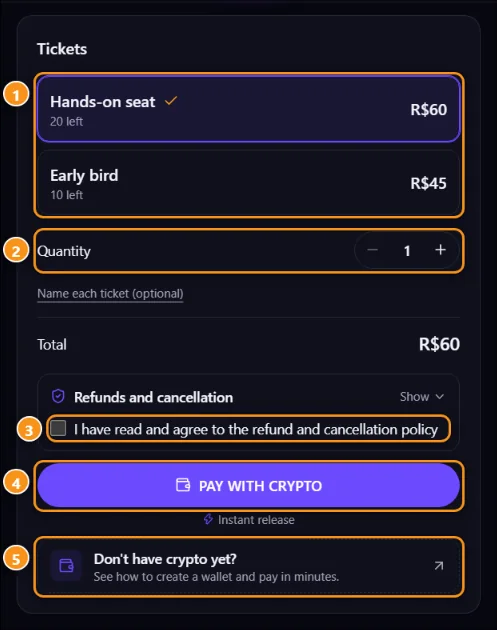
1 Ticket types · 2 Quantity · 3 Refund policy · 4 Pay with crypto · 5 No crypto yet? A quick guide
- Open the event page. Sign in if you haven't (Sign in to get tickets).
- Choose the Ticket type 1 (General, Half price, VIP…). Types tagged Members or Subscribers are only for members, or subscribers of a plan, of the Club community linked to the event.
- Choose the Quantity 2. To put a name on each ticket, tap Name each ticket (optional). Without a name, the ticket uses your account name.
- Free event: tap Get my free ticket. Done.
- Paid event: open Refunds and cancellation to read the policy and tick that you agree 3, then pick how to pay (below).
- Your ticket appears in My tickets and arrives by e-mail.
The ticket box only shows the ways to pay the organizer turned on. Some events offer both, some only one.
Pay with crypto
- Tap Pay with crypto 4 (marked Instant release).
- Anyza Pay opens in a window over the page, in your language. Choose the network there: USDC or USDT on Solana, Bitcoin or Lightning, depending on what the organizer accepts.
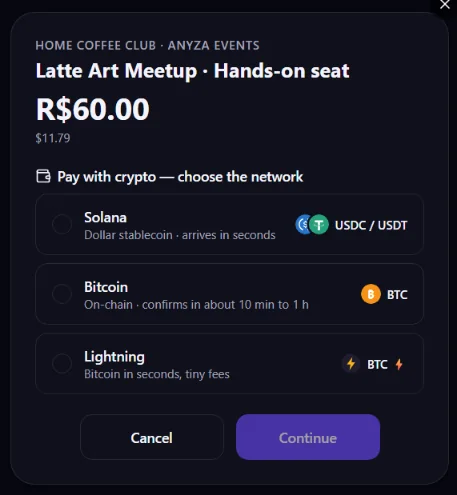
- Pay with your wallet. The money goes straight to the organizer's wallet.
- As soon as the payment shows up on the network, the window closes and your ticket is issued.
If you close the window before paying, the ticket box waits for your payment:
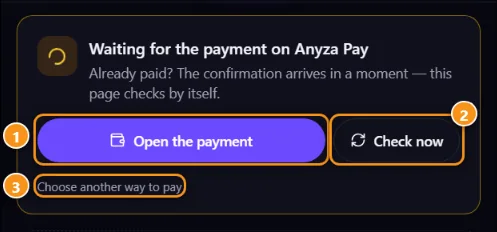
1 Open the payment again · 2 Check now (if you already paid) · 3 Choose another way to pay
Prices are set in the organizer's currency and converted at the day's rate.
Pay by card (organizer's link)
- Tap Pay by card, then Pay by card again (Whop) or Open payment link (other checkouts such as PayPal or Mercado Pago). The organizer's page opens in a new tab.
- Pay there, ideally with the same e-mail as your Anyza account.
- Back on the event page, write a note if you want (e-mail used, receipt) and tap I've paid.
- The organizer confirms the payment and your ticket appears in My tickets.
Card payments are not confirmed automatically. The ticket is issued when the organizer confirms in their sales panel.
Bought through a promoter's link
If you opened the event from someone's link (?ref=), the ticket box shows "Referred by @name". When the organizer offers a discount to promoter referrals, it shows the percentage and applies it at payment.
I don't have crypto
Tap No crypto yet? 5 in the ticket box, or see Don't have crypto yet? for wallets, how to buy USDC or USDT, costs and how to pay. You can also use the card option when the organizer offers it.
Before you pay
- The How Anyza protects you box shows who's responsible for the event, the organizer's trust tier, how many events they've held and the review average from past attendees.
- Tickets only exist inside Anyza. Never pay outside the event page or accept a QR sent by message.
Related: My tickets · Organizer reviews · Club communities and Events
Updated 2026-10-16