

Widgets and the countdown page
Put an event card, a ticket button or your organizer agenda on any website with one line of code, and share the countdown page that shows each visitor their own time.
Watch the lesson
Widgets for your website
Put your event on your site, blog or link page. The widget updates by itself and opens Anyza Events in a new tab.
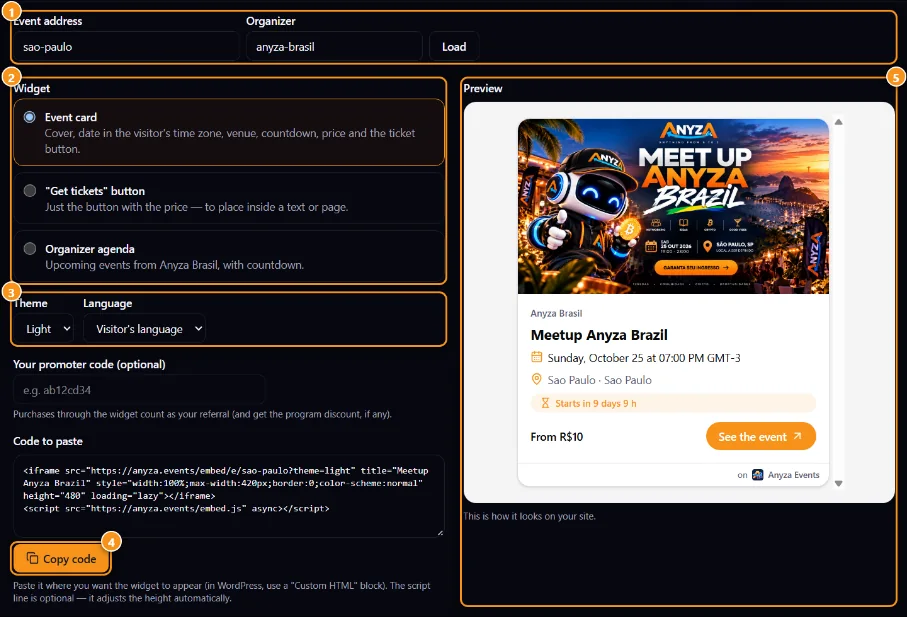
1 Event address or organizer, then Load · 2 Widget type · 3 Theme and language · 4 Copy code · 5 Preview
- Open anyza.events/widgets. Team members also find Put on my website on the event page and on the organizer page.
- Paste the Event address or the Organizer address and tap Load 1.
- Choose the Widget 2:
- Event card: cover, date in the visitor's time zone, venue, countdown, price and the ticket button.
- "Get tickets" button: just the button with the price, to place inside a text or page.
- Organizer agenda: the organizer's upcoming events, with countdown. Choose how many Items.
- Choose the Theme (Light or Dark) and the Language, or leave Visitor's language 3.
- Optional: fill in Your promoter code. Purchases through the widget count as your referral. If you're a promoter of the event, your code is already filled in.
- Check the Preview 5 and tap Copy code 4. Paste it where the widget should appear. In WordPress, use a "Custom HTML" block. The script line is optional; it adjusts the height automatically.
Anyone can make a widget for a public event, not only the organizer. Link only events and drafts can't be embedded. Widgets only show what's already public on Anyza, with no cookies or tracking on your site.
The countdown page
Each event has a countdown page at anyza.events/e/<event>/countdown. Open it from the event page or the ticket with Open and share the countdown.
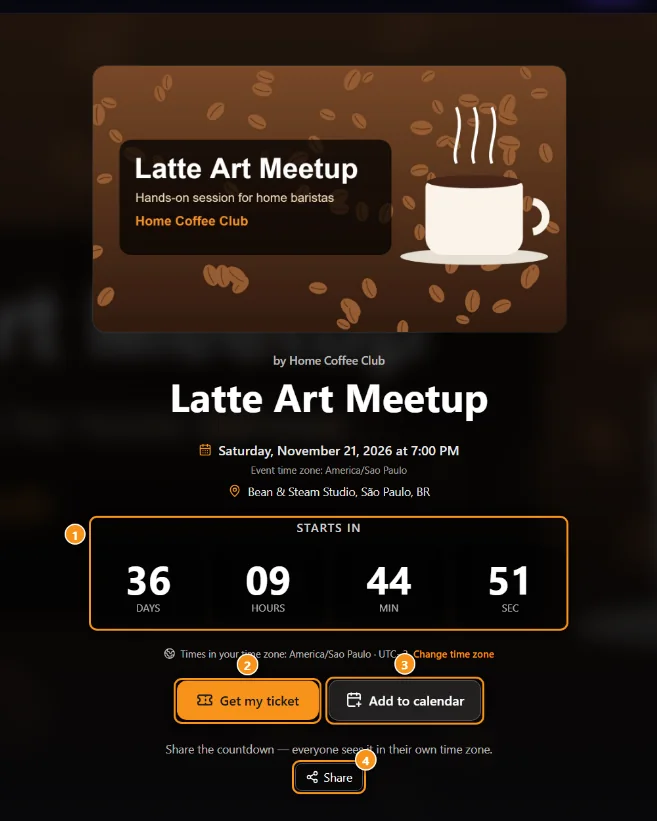
1 Live countdown · 2 Get my ticket · 3 Add to calendar · 4 Share
It shows the cover, a live countdown 1 (days, hours, minutes, seconds), the time in the event's time zone and in the visitor's, with Change time zone, plus Get my ticket 2, Add to calendar 3 and Share 4.
When someone shares the link on WhatsApp or social media, the preview title already says how long is left ("4 days to go", "It's tomorrow", "It's today"), in the event's language. During the event the page says Happening now; afterwards, This event has already happened; if cancelled, Event cancelled.
Related: Share and promote an event · Promoters · Organizer profile, trust tier and payouts
Updated 2026-10-16