

Files, videos and courses
Keep manuals, policies and templates in folders by department, share videos with the team and train people with courses that track each person's progress. Storage is part of the plan.
Watch the lesson
The Files, Videos and Courses & lessons tabs work as in any Anyza Club community, with three differences in company mode: everything new starts invite only, storage comes with the plan (no credits), and courses are not tied to subscriptions.
Files
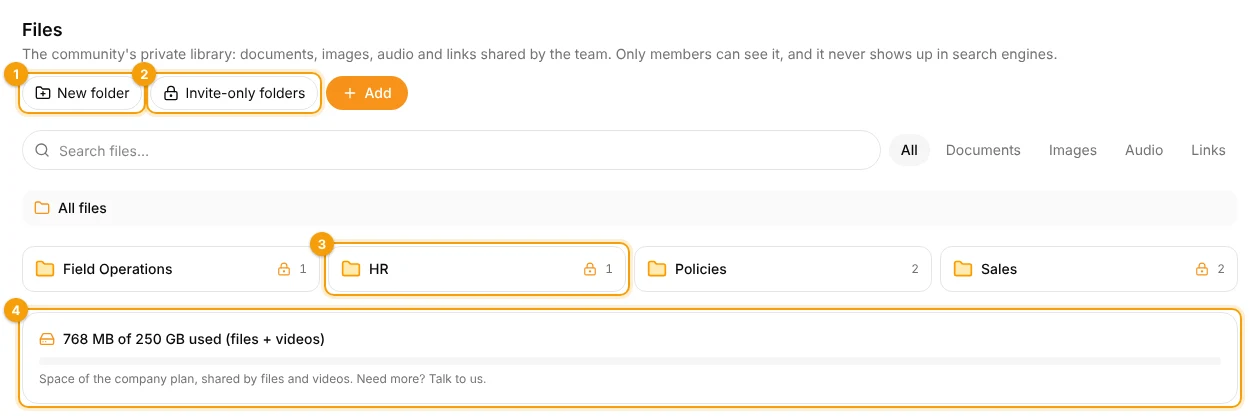
1 New folder · 2 Invite-only folders · 3 A department's folder · 4 Space used
- New folder 1 creates a folder. New folders start invite only and hidden: open each one to the right department in Settings → Invite only — Invite-only folders 2 goes straight there.
- A lock 3 marks folders that are only for some departments. People see only the folders opened to them.
- + Add uploads documents, images and audio, or saves a link.
- The bar at the bottom 4 shows the space used by files and videos together.
For details on uploading, search and folders, see Files library.
Videos
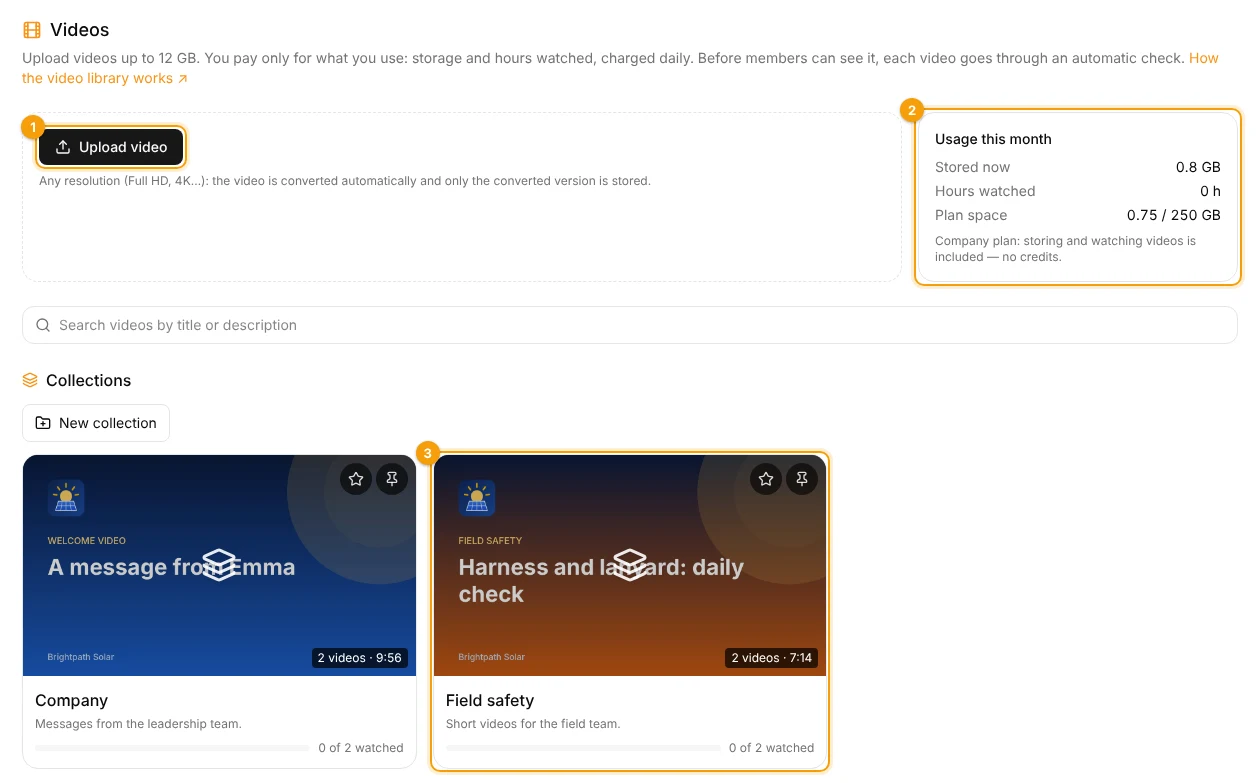
1 Upload video · 2 Usage this month · 3 A collection for one department
- Upload video 1: up to 12 GB per video, any resolution. Before people can see it, each video goes through an automatic check.
- Usage this month 2 shows the space used. On the company plan, storing and watching videos is included — no credits.
- Collections 3 group videos (for example *Company* and *Field safety*). A video inside a collection follows the collection's access.
Videos and collections also start invite only. For details, see Video library.
Courses
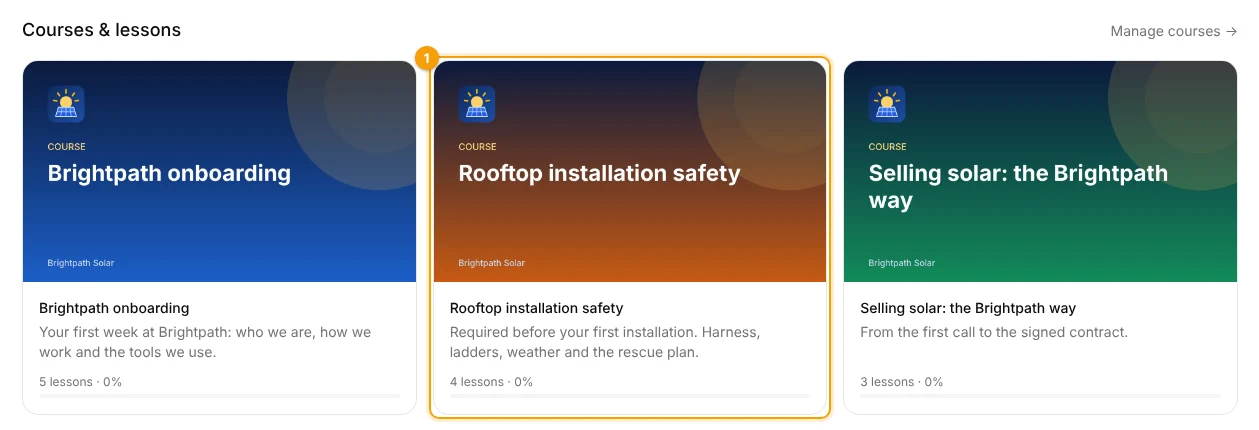
1 A course for one department
Create courses in Settings → Courses & lessons, with modules, lessons, quizzes, an exam and a certificate. In company mode:
- a course with Invite only access 1 is seen only by the people and profiles you open it to; courses have no lock — whoever isn't invited simply doesn't see them;
- an onboarding course open to the whole company is one of the first steps of a new space.
For the course editor, see Courses and lessons.
Each person's progress
Open a course and tap Students panel (team only).
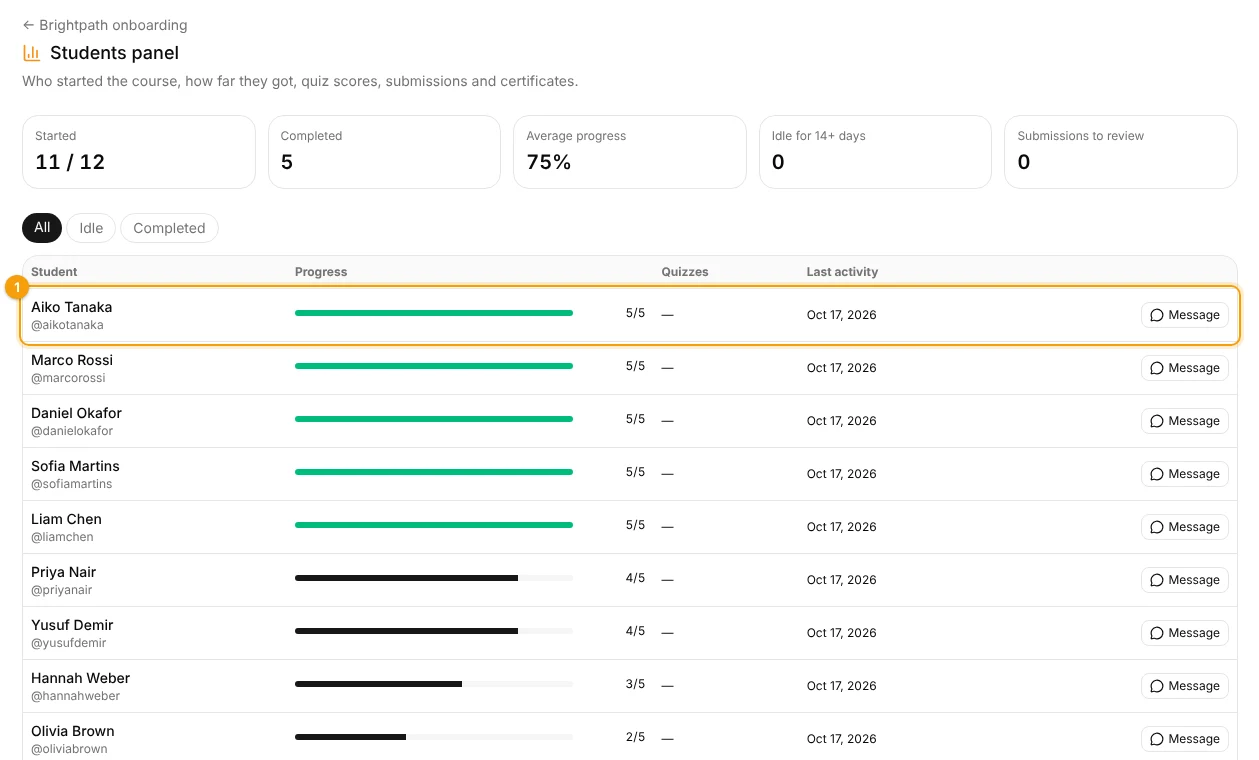
1 One person's progress
The top cards show how many people started and completed the course, the average progress, who has been idle for 14+ days and submissions to review. Each line 1 shows lessons done, quiz scores, the last activity and a Message button. The Courses report in Settings → Manager reports downloads the progress of everyone in every course.
Storage
Files and videos share the same space: 50 GB on Team and 250 GB on Business. Watching videos has no limit. Need more? Talk to us. See Plan, trial and payment.
Related: Access profiles and invite only · Team, “I have read and agree” and reports
Updated 2026-10-19