

Store dashboard
Revenue, views, contacts, the funnel from views to deals, results per listing, featured-listing returns, low stock and credits, plus store settings and your Radar location.
Watch the lesson
Business stores have a Store dashboard with the numbers that matter for selling. Open it from the account menu (Store dashboard) or /me/business/stats. If you don't have a store yet, see Business account and featured listings.
Period and headline numbers
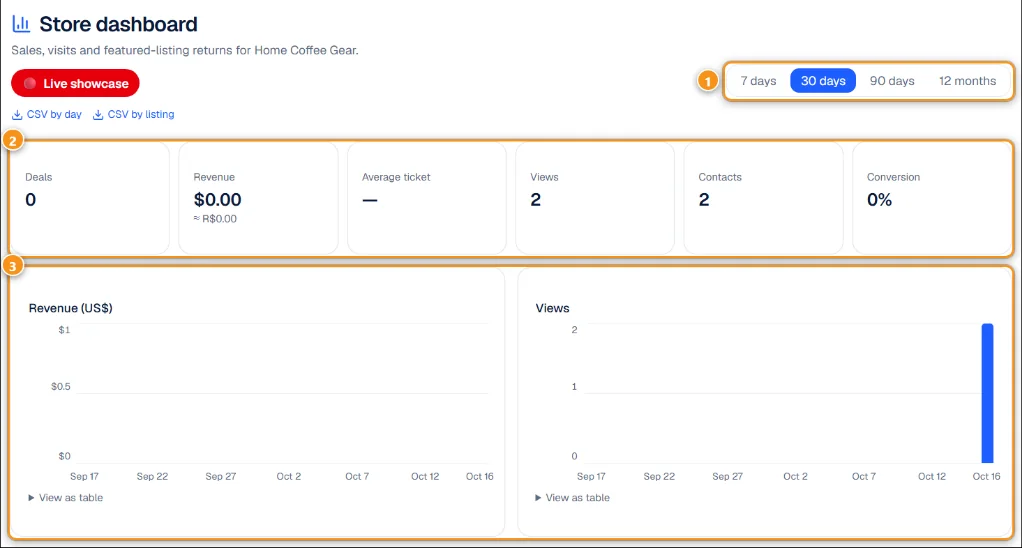
1 Period · 2 Headline numbers · 3 Revenue and views charts
- Period 1: 7 days, 30 days, 90 days or 12 months. Everything on the page follows it.
- Headline numbers 2: Deals, Revenue (in US$, with your currency as a reference), Average ticket, Views, Contacts and Conversion (deals divided by views).
- Charts 3: revenue and views day by day. View as table shows the numbers behind each chart.
At the top you also find Live showcase and the downloads CSV by day and CSV by listing, to open the data in a spreadsheet.
Revenue counts only deals confirmed by the buyer (the handshake). Sales you mark as Sold outside Anyza don't count.
Funnel, listings, features and stock
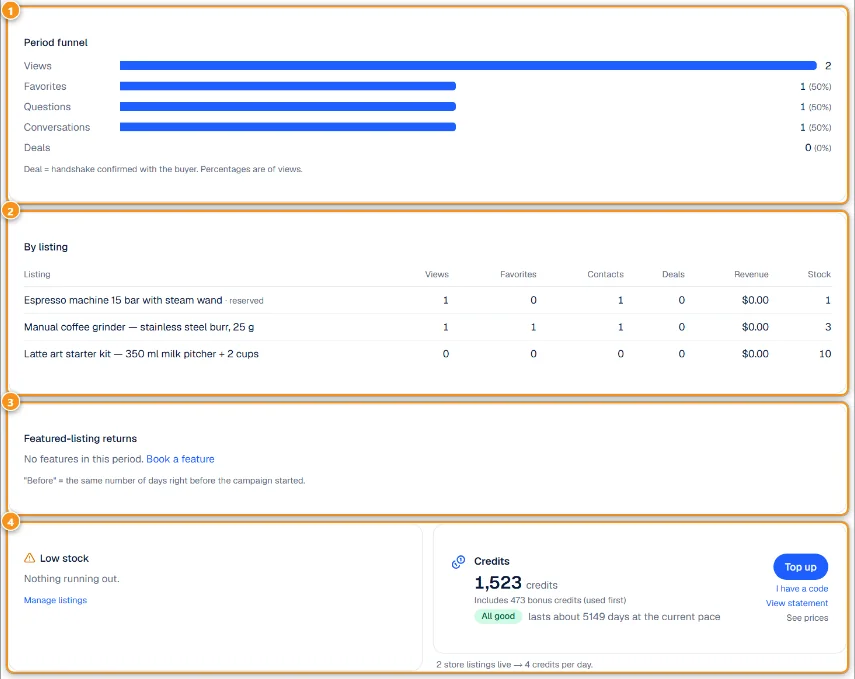
1 Period funnel · 2 By listing · 3 Featured-listing returns · 4 Low stock and credits
- Period funnel 1: how many people went from Views to Favorites, Questions, Conversations and Deals. Percentages are of views. A deal is a handshake confirmed with the buyer.
- By listing 2: views, favorites, contacts, deals, revenue and stock for each listing. Reserved listings are marked.
- Featured-listing returns 3: for each feature campaign, the days, the credits spent, views and contacts before and during the campaign, and credits per contact. "Before" is the same number of days right before the campaign started. Book a feature opens the booking.
- Low stock 4 warns when a listing with stock is running out (Manage listings to restock). The Credits box shows your balance, how long it lasts at the current pace and how many credits your live store listings use per day, with Top up.
Store settings and Radar
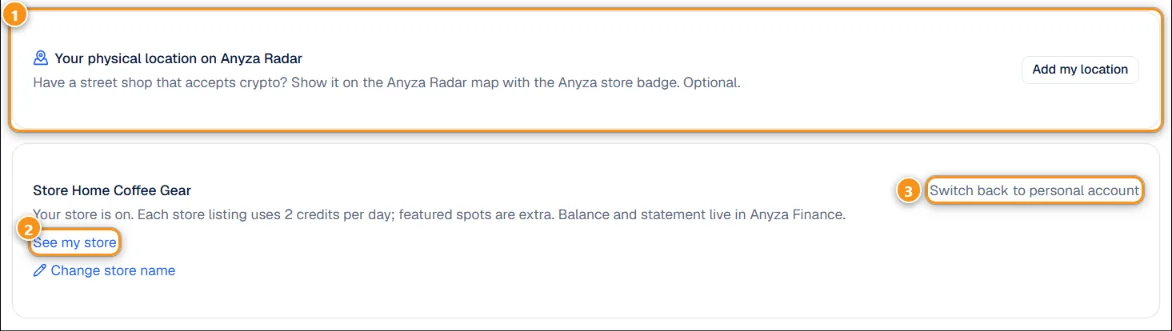
1 Your physical location on Anyza Radar · 2 See my store · 3 Switch back to personal account
- Your physical location on Anyza Radar 1: if you have a street shop that accepts crypto, tap Add my location. Fill in the name on the map, address, city, state, country, opening hours (optional) and what the shop accepts (Bitcoin on-chain, Lightning, USDT, USDC). Check the pin, then tap Save location. It shows on the Radar within a few minutes, with a link to your store. The exact point is public. More in Register a merchant.
- See my store 2 opens your public store page. Change store name works once every 30 days (2 to 60 characters).
- Switch back to personal account 3: your listings stay live at 1 credit per day. See Business account and featured listings.
Tips
- Many views and few contacts? Improve the photos and the first line of the description.
- Many contacts and few deals? Check the price, or offer a coupon in the chat.
- Compare Featured-listing returns before booking again: credits per contact tells you which place is worth it.
Related: Discount coupons · Live showcase
Updated 2026-10-17