

Surveys
Ask your members what they think and see the results in charts — choices, scales, NPS and open answers. Anonymous by default, with an optional AI summary.
Watch the lesson
A survey is the quickest way to know what your members want: which topics, which format, what to improve. You write the questions, choose who answers and publish. Members get a notification, answer in a minute, and you see the results as they come in.
Where to find it
- Settings → Surveys (under "Talking to members"): the list of surveys and New survey. Only the owner and admins see this menu.
- Surveys tab: members see it when there is a survey for them. A badge shows how many open surveys they haven't answered yet. The owner and admins always see it.
Create a survey
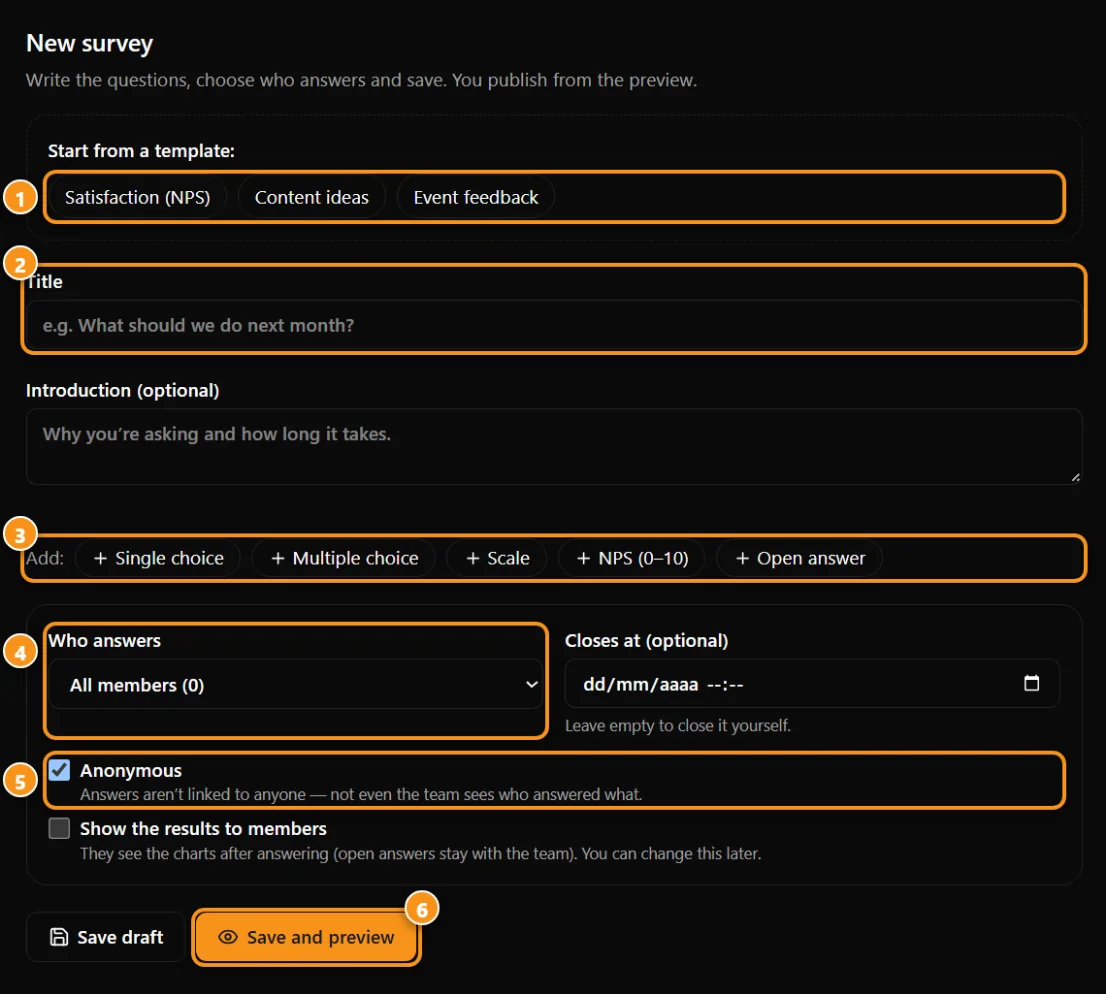
1 templates · 2 title · 3 add questions · 4 who answers · 5 anonymous · 6 save and preview
- Go to Settings → Surveys and tap New survey.
- Start from a template (Satisfaction (NPS), Content ideas, Event feedback) or from scratch.
- Fill in the Title and, if you like, an Introduction saying why you're asking and how long it takes.
- Add questions (up to 30). For each one, pick the type and mark it Required if it must be answered:
- Single choice and Multiple choice: 2 to 12 options.
- Scale: 1–5, 1–7 or 1–10.
- NPS (0–10): "how likely are you to recommend…". The result shows the NPS score.
- Open answer: free text.
- Choose Who answers: all members, subscribers, non-subscribers or one of your lists. In company mode you can also pick an access profile.
- Optional: Closes at — leave it empty to close it yourself.
- Choose Anonymous (on by default) and whether to Show the results to members.
- Tap Save draft to keep editing later, or Save and preview to see the survey the way members will.
- On the preview, tap Publish. After publishing, the questions can't be changed.
Anonymous or identified
- Anonymous: the answers are not linked to anyone. Not even the team can see who answered what. Anyza only keeps a separate note that the person already answered (so nobody answers twice), with the day but not the time.
- Identified: the team sees each person's name next to their answers, in the open answers and in the CSV.
Say which one it is in the introduction. Members also see it above the questions.
What members see
- A notification in the bell, and an e-mail (people who turned off survey e-mails in their e-mail preferences only get the bell).
- The survey in their language when your community has automatic translation on.
- One answer per person. Required questions are marked with *.
- If you chose Show the results to members, they see the charts after answering (or when the survey closes). Open answers always stay with the team.
Results
Open the survey from Settings → Surveys or the Surveys tab:
- Response rate: how many people answered out of everyone invited.
- Choice questions: a bar for each option, with count and percentage.
- Scales and NPS: average, the distribution of scores and, for NPS, promoters (9–10), passives (7–8), detractors (0–6) and the score.
- Open answers: every answer, 50 at a time.
- CSV: download all answers as a spreadsheet.
- Close now, Show results to members (on or off at any time) and Delete.
AI summary
With 3 or more responses, tap Summarize with AI. The AI reads the numbers and the open answers and writes the main takeaways, what members ask for, concerns and three next steps, in your language.
- Each summary costs 10 credits. Opening it again with the same answers is free. You only pay again if new answers came in or you want it in another language.
- In company mode the summary is included in your plan.
- Check the numbers in the charts before deciding — the summary is a guide.
Tips
- Keep it short: 3 to 7 questions get the most answers.
- Make one question open ("anything else?") — it's where the best ideas show up.
- Share the results with members afterwards. People answer the next survey when they see the last one made a difference.
Updated 2026-10-15