
Joining a community, invites and Share
Public, private, by invitation. And how to bring someone in.
Watch the lesson
Find a community
The Club home has search, categories and filters (language, country, public/private). You can also tap Alert me about communities like these to get an alert when a new matching community shows up.
Join
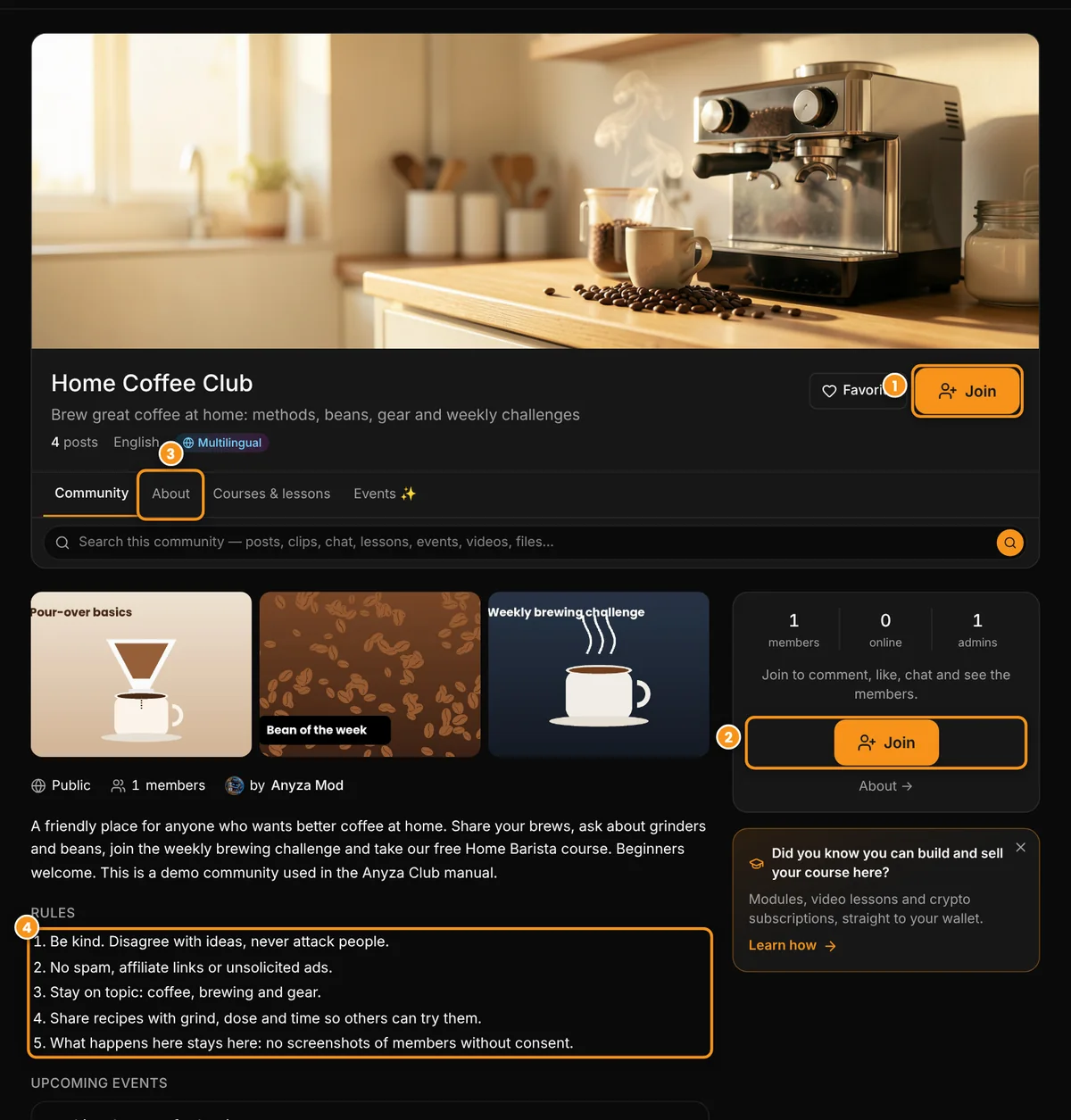
1 Join (top) · 2 Join (side box) · 3 About tab · 4 the rules
- Public: tap Join and you're in.
- Private: tap Ask to join; the owner approves. Some communities ask a few entry questions.
- Invitation: an
anyza.club/convite/<code>link takes you straight in, even to a private community (while the invitation is valid).
You need to be signed in with your e-mail confirmed (level L1).
Share
The Share icon, to the right of the community tabs (members only), shares the community's About page (WhatsApp, Telegram, X or copy link). Whoever gets it sees the community and decides whether to join. Nobody gets added without choosing to.
Owner invitations
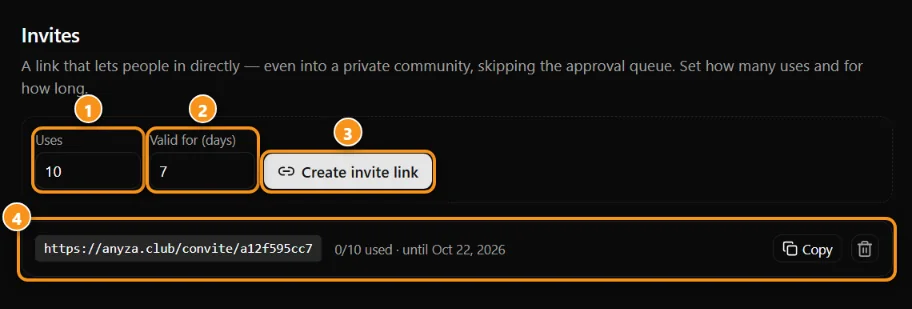
1 how many uses · 2 valid for how many days · 3 create the link · 4 the link, with Copy
The owner and admins create invitation links in Settings → Invites, with a usage limit and an expiry date, and see who joined through each one.
Leave
Leave is in the community header and asks you to confirm (Yes, leave). Your messages and posts stay there.
Updated 2026-10-15